All posts filed under: DigiScrap Talk

greeting card

Hybrid Hub: Card No. 9 – Thank You

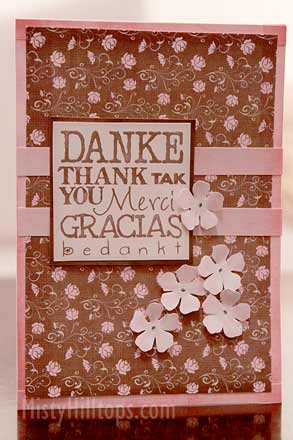
Today’s hybrid project is another thank-you card. One of my older hybrid cards that I created last year. For this one, I use “Sunshine of My Life” by Susan Bartolini. The majority of the sentiment was “stamped,” using Darcy Baldwin’s Stamp Pad Alpha, a brush-set that I’ve used time and again, as well as Darcy’s “Gimme Space” font, a really cool font that I have seen on many layouts in the galleries, too.

Monday Highlight: Layered Up in You

Whaaa! It’s been a week since I last posted here in the digiscrap corner. Not only does that mean that time flies, but also: Can you tell I’ve been rather busy recently? Anyways, let’s get right back on track, and today I thought, I’d share another product with you – or better a series of products, since La has a whole set of these out in her store at SSD. The talk is of her … Layered Up in You  Clipping Masks by Lauren Grier I have most of these clipping masks, and love to work with them, because they can give your pages such a whimsical, hand-drawn feel, which is especially useful for those of you who love doodling, but who don’t have a graphic tablet to do so properly, or don’t want to take the time to draw their own doodles. Lauren’s doodled clipping masks come in many different sets, and what is so fun about them, is their versatility. You can clip them to photos, papers, you can adjust them in terms …

Monday Highlight: A {Free} Shutterfly Photobook

I’ve got a rather different product that I want to highlight today. It’s all about photobooks by Shutterfly. However, the feature I want to share with you today is a free function that Shutterfly offers – the option to share your photobooks with friends and other people. And as I said, it’s all for free. If you are looking for a simple way to share your scrap pages with others online, this might be the solution. Basically, all you need to do is, sign up for your own account with shutterfly (they don’t require much information, just your name, email address and a password, of course), upload your images to your shutterfly account, and then create a photobook using the available options. It’s very easy, and with little time you can figure it out on your own. The trick is, instead of ordering the photobook to be printed (which of course will cost its price), you simply pick their share options, get the direct link to share in emails, ect., or they even provide the …

Treasure Sunday: Becoming Vegetarian

“Becoming Vegetarian” by Valoriew By posting this page today, I’m not trying to get a message across, lol, after all, though I’m not a big meat eater, I still like to enjoy it every once in a while! What caught my eye with this page, however, was its composition. I love the huge title that dominates everything, the composition, the scattered elements displaying various foods, and the position and editing of the photo. And then, isn’t the little seemingly lost date element just fun?

Freebie Friday: Boy

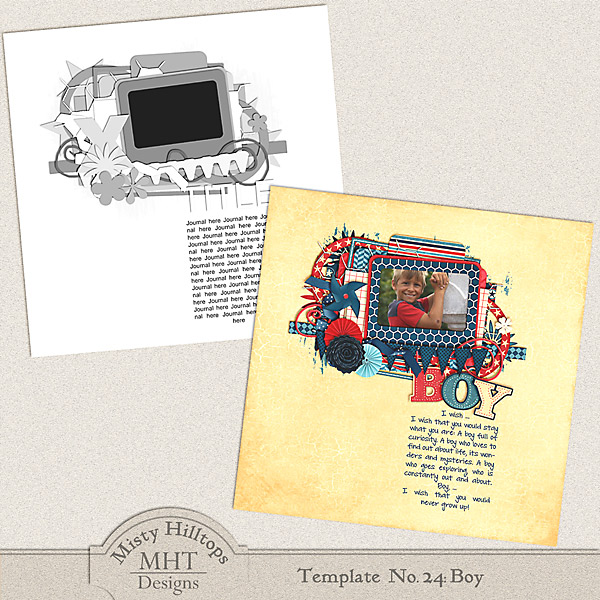
How about a new template freebie for you that comes on time? This one is based on a layout with Libby’s new release this weekend that I titled “Boy.” I hope you’ll have fun with it, and as always, link us up here when you create something with one of my templates. Before I let you go and play, though, I want to show another pretty page that AJM created, called “I pick you.” I love the color scheme of this page, how she clustered the elements, and that she used stitches to border her page. Of course, the photo is the best of this page, and I love that she used it with this template (“Leap,” which will be available for download one more week) to keep it very prominent on the page! Thanks for sharing your page with us, and as always … Happy Friday, everyone! Note: Please do not re-distribute this template in any way (you may share the link to this post), and when you use this template, please make sure …

Hybrid Hub: Card No. 8 – Thank You

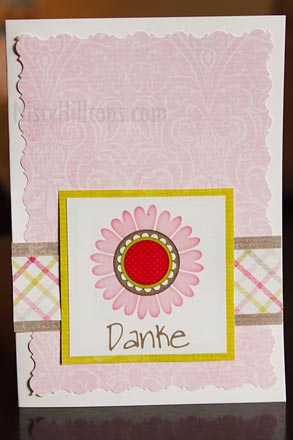
Here is the last of my recent spring themed cards, and it’s another thank-you card. I used Melissa Bennett’s beautiful, Valentines-themed kit “What About Love” for both, papers and the flower stamp. The pink patterned background I cut out with those scissors that come with a decorative edge. For the mat containing the sentiment, I just used one of the paper flowers Melissa included in the kit. I printed it directly on the white mat, to give it more of a stamped look. For the sentiment, I simply used one of the fonts, Darcy recently released. By the way, I finally went ahead and posted a tutorial on how to use the paper piecing patterns that come with a printable pdf file. Paper piecing patterns are perfect for pretty cards, and if you aren’t sure how to use paper piecing patterns digitally, I recommend you check out that article.

Enable Me: Yet More Photoshop Actions!

Can you believe it’s that time of the month again when I have the privilege of sharing with you another fun pack of Photoshop actions? This time it’s a set of five different actions, created by Shareef Gaadi. Simply click on the image above, and it will take you to the download page on deviant art, where you just need to click on the download link in the upper right area of the page. Have fun trying these out!

Behind the Scenes: Using Paper Piecing Patterns in Photoshop

The other day I promised you I would do a tutorial about how to actually use paper piecing patterns such as scrapbooksetc.com offer for free on their website. And today is the day! Like many other resources on the internet, these paper piecing patterns come in .pdf files, which is great when you only want to use them to trace the shapes on an actual piece of cardstock. But how do you go about when you want to use them with a graphic program such as Photoshop? The answer is really simple, and there are different ways how you can actually utilize pdf paper piecing patterns, create clipping masks, or resize these patterns to better meet your needs. Access Patterns in Photoshop The first thing you have to do when working with pdf files, is make sure, you can access the file with photoshop. Some files easily allow that: Simply right click on the file in your folder, and choose the option “Open with …,” and then pick “Photoshop” in the fly-out menu. This will …

Monday Highlight: Worn Photo Overlays

I haven’t done tools and extras for a while in the Monday Highlight, so I’d like to take today’s post and dedicate it to Worn Photo Overlays by Something Blue Studios I’ve had a couple of Danielle’s overlays for quite a while now, and they are something I’ve gone back to time and again. Her worn overlays are perfect to give your page a worn, rugged feel. When you check out her store at Catscrap (or her own website), you’ll find that she actually has quite a couple of sets of overlays for photos, papers, elements, frames, labels, even an alpha. Every set comes with instructions that make the use of these overlays super easy and fun, and I love how real the overlays make the photos look: old, worn, bent, and folded. Danielle’s overlays are some of the most realistic looking overlays I’ve seen on the market yet (and I do have a couple of others, too). Here is one of my latest sample page on which I used Danielle’s Worn Photo Overlays: