Latest Posts

december daily, document christmas, digital scrapbook album

December Daily – Week 2 Recap

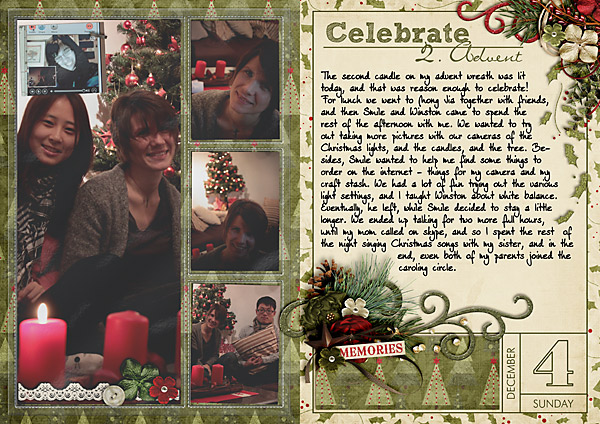
Another week has passed, which means I have a whole new set of December Daily pages ready to present to you.


december daily, document christmas, digital scrapbook album

(This page was featured at Logyourmemory.com earlier this week!)

december daily, document christmas, digital scrapbook album

december daily, document christmas, digital scrapbook album

december daily, document christmas, digital scrapbook album

december daily, document christmas, digital scrapbook album

december daily, document christmas, digital scrapbook album

december daily, document christmas, digital scrapbook album

Being well into the project now, I have to say that I still don’t feel overwhelmed at all trying to catch up. Having prepared that foundation page, and given some thoughts to how to tackle it before I started, really helps me now to stay on top of everything. It’s an easy project, and I look forward to scrapping a new day every single time.

On to another week …


PS.  All images are linked to the gallery for credits.

PPS. You can find my Week 1 Recap HERE.

Freebie Friday: Taking Another Break

Can you tell that I’ve been busy with real life lately? I hardly have time to catch up with all my blogging. So, I decided to give myself another break again this week. But that doesn’t mean you have to be disappointed. Let me remind you that over at SSD you can pick a new free template every day throughout the month of December. So that should give you plenty of templates to work with! And if that isn’t good news enough already, I’ve got something to top it! SSD also has a retirement sale going on till Dec. 24th. Hundreds of products are for sale at half price (that’s 50% off!!!), so make sure you stop over there for your share of scrappy goodness!

Anyways, winter break is around the corner, which means very soon I’ll have more time to create my own freebies for you again. So stay posted!


A Lot Like Christmas

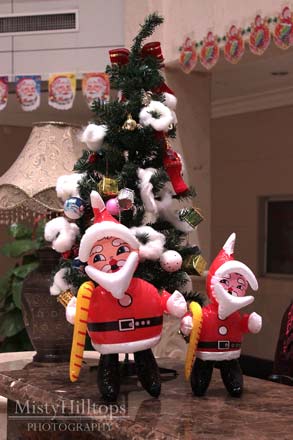
First it was only my apartment, then it was our dining hall, and now, finally even in our lobby it begins to look a lot like Christmas. As I’ve said before, whether you like the style and decorations really is a question of personal taste, but at least signs of Christmas are popping up everywhere even around campus. Well, if that’s not reason enough to welcome the season!

P2D: Christmas Cheer

I decided to switch things up a bit. Since I’m posting my December Daily project every Saturday (during December), I’m going to share another paper to digi project with you today.

I found this paper layout a while back:

Basically, I love everything about this page. So I wanted to try my hand on it digitally. I loved all the tags, the scattered elements, and the journaling around the center piece. So, I went ahead, and created my own page, using various tags and tag-overlays and what not, and here’s how it turned out:

If you haven’t tried your hand at P2D yet, I highly recommend it! It’s just a whole lot of fun!

Food Corner: Vanilla Cookies

Usually, I only present you with short descriptions for the food corner. Today, however, I have something special in store for you: A very easy cookie recipe.

You will need:

  • 2 cups flour (all-purpose) / 250 g wheat flower
  • 1/3 cup granulated sugar / 75 g sugar
  • 1-2 teaspoons vanilla powder / 2 pouches vanilla powder (16 g)
  • 1 pinch salt
  • 1 egg (medium)
  • 1/2 cup softened butter (unsalted) / 125 g softened butter or margarine

Time: about 40 min.
Difficulty: Easy
Preparations:

  • Preheat oven to 350 F (180-200 °C depending on your oven).
  • Lightly grease baking sheets, or line with parchment paper.

Dough:
Sift flour into a bowl. Add all other ingredients. Stir until the dough is smooth. Take some of the dough, roll out to about 1/4-1/3 inch thick (about 1/2 cm; depending on the crunchiness you prefer). Cut out cookies with shapes/cookie cutters, and place cookies on your baking sheet. Bake for about 9 min.
If desired, decorate the cookies with melted chocolate.

Yield varies on how thick/thin you roll the dough and the size of your cookie cutters.

I use this recipe all the time with my students, and they really like the cookies.

Enable Me: Glitter Styles

What is Christmas without the magic … and the glitter? Of course, when scrapping, we want to capture the wonders of the moment, and with our pages we try to preserve as much of the magic as possible. Using glitter accents on scrapbook pages isn’t anything new. A lot of designers offer glitter backgrounds, glitter elements, glitter word art, and whatever else you can think of that glitters. Some of them even offer glitter styles for purchase. Today, however, I bring you some glitter styles for free. Actually, the web is full of free styles and actions that you can just download onto your computer (thanks to the generosity of their creator). All you need to do is search the internet a bit, and you’ll find tons of great stuff. But today, and since it’s Christmas season and all, I’ve made your search a little easier. Just click on the image above to get to the corresponding website from where you can easily download these glitter styles.

Behind the Scenes: How to Create Custom Shaped Text Paths

If you’ve seen my recent posts, you’ve probably stumbled across my December Daily pages. If you took the time to look at one or two, you might have noticed how the journaling wraps neatly around all the embellishments without really interfering with them. Today, I’m going to show you how to create such a text path that is customized to wrap around your elements and clusters. (This is useful not only for December Daily projects, but for any layout that requires a custom shaped text field.)


In this tutorial you will learn how to …

…  make a customized selection (based on your element and text layers);
… contract your selection; and
… turn your selection into a text path.


Here’s How It Works …


STEP 1 | Duplicate and Merge Layers
Assuming that you’ve already put together your layout, including all the embellishments and element clusters you have wanted to add, go with your cursor to the layers panel, and select all the layers that you want your text to wrap around. Right click on any one of the selected layers and choose “Duplicate” from the pop-up menu. For ease of reference, place all your duplicated layers on top of everything else. Then – while they are still selected – merge all these layers by pressing windows key + E. Now you should have one flat layer of all your elements on top of all the other individual layers.

Duplicate layers


STEP 2 | Make a Selection
Press W to bring up the Magic Wand tool. With the one duplicated layer selected, click anywhere on an empty spot of your layout (anywhere outside the elements that make up your duplicated layer). This will select everything but your merged elements (marching ants).

Make a selection


STEP 3 | Contract Your Selection
Go to Select > Modify > Contract to open a pop-up window which asks you to enter a value for how much of your selection will be contracted.

Modify selection

The value you type in depends on the size of your layout and your personal preferences. I contracted my selection by 25 pixels.

Contract selection


STEP 4 | Manually Reduce Your Selection (Subtract)
Now that you’ve already contracted your selection, you want to further reduce the size of your selection to whatever size you need for your journaling. In my example layout, you can see that I wanted to have my journaling within the parameters of the green field I’d intended for the journaling part. Press M to bring up the “Marquee Tool,” make sure the “Rectangular Marquee Tool” is selected, and that its mode is set on “Subtract from selection” (check in the top right corner of your Photoshop window).

Subtract from selection

Then click and move your cursor over any part you want to deselect.

Contracted selection

In the image above, I removed parts of the selection from all four sides.


STEP 5 | Create a Text Path
While the Marque Tool is still selected, return to the default mode “New Selection” (top right corner again).

New selection mode

Then go with your cursor anywhere within the parameters of your selection (marching ants), and right click to open a pop-up menu. From the menu choose “Make Work Path.” Now the “marching ants” should have turned into a solid outline.

Make Work Path


STEP 6 | Write Your Text
Press T to open up your Text Tool. Make sure to adjust font, font size and color if necessary, then go with your cursor anywhere inside the work path. The cursor turns into the type tool surrounded by brackets. Click inside your selection, and start typing.

Text layer


STEP 7 | Delete Duplication Layer
After you completed typing your text, the last thing you need to do is delete the layer you created when you duplicated and merged all those duplicated layers. Place your text layer as close above your background layer as possible (to make sure it doesn’t sit above any elements it might still overlap with – that would look quite unrealistic!).

That’s it. Easy peasy, and you don’t have to worry about text layers that are illegible because they are covered by other layers any more.

Here’s a look at my finished page:

I hope you found this helpful, and stay tuned, because next time, I’ll show you how to easily change the color on a brushed overlay (like the ones used for my December Daily project which include the date fields in the right corner).

St. Nicolas Has Come

December 6th. In Germany that is a date all the children look forward to. Because it’s St. Nicolas Day. That morning kids wake up to find a Santa boot or a Christmas stocking in front of their door – filled with sweet treats like cookies, chocolate, candy, some fruits, and nuts, and maybe even a small present.

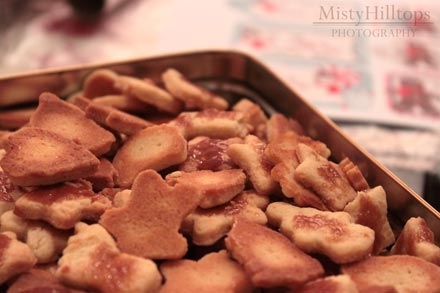
Waking up this morning, I knew I wouldn’t find said boot in front of my door. No one even knows about St. Nicolas here. But that doesn’t mean I can’t leave a little love in front of someone else’s door (or in their mail boxes for that matter!) So, I spent all afternoon together with my students baking cookies. And while I have no Santa boot or stocking for the cookies to  go with, I know some people around here still will be glad that there’s something like St. Nicolas Day. And that there’s someone here who cares about St. Nicolas Day.

On that note, happy St. Nicolas Day to all near and far!


PS. The cookies you see in the photo were made by students who’ve never done any cookie baking in their whole life before. Well done, I’d say!

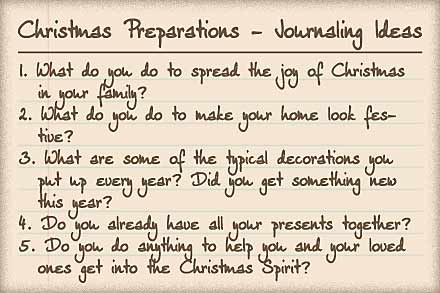
Journaling Café: Christmas Preparations

Christmas season has officially started, and for most of us that means lots of preparations need to be made. Today’s journaling prompts are all about those preparations. Sometimes we can get so focused on documenting those special moments in our lives that we tend to forget to record that part that has to do with the everyday little things, and yet, it’s those little preparations that help so much to make our special moments unforgettable.

I hope these prompts will help to inspire your journaling this week, and enjoy telling your stories!

The font used here is my own handwriting font DJB Squirrels In My Pants by Darcy Baldwin (available at the Sweetshoppe).

Thrown for a Loop

Got off on the wrong foot today. At least that’s what it seems.

First thing I realized after getting up this morning was that it was raining. Yet again. Now, rain isn’t necessarily a bad thing -except when it rains on Mondays or Tuesdays. That’s when my classes are on the far end of the campus, which means, I have a long way to get there. And when it rains, I can’t really ride my bike to class, and that means, I need twice as much time to get to work, which is twice as much time to get soaked by the rain.

Second thing, last night, I wasn’t able to get the copies I needed for class today, so I had to get them this morning before class. But you know how things work when you leave them to the last minute (which is why I usually do everything I can to avoid that) – they throw you for a loop. Now, in order to avoid that loop, I made sure to get up early enough, so I could go and get those copies done without stressing. But as it goes, when I came to the copy room, they’d just gone out of paper. No problem, I thought. For that very reason, I’d remembered to grab some money right before I’d left home. Because if plan A fails, you always need to have plan B ready. So, just in case the copier didn’t work, I’d taken money so I could stop by a copy store on campus – my plan B. Except, plan B didn’t work either, because at 9:15 in the morning, none of the copy stores on campus were open yet. So, I rushed back home, grabbed some of my printing paper, and then back to the copy room for the foreign faculty. That’s where I ran into one of my colleagues, getting ready for his own classes. And you know what? That’s when my colleague told me about a genius idea to spice up my next lesson, which is just what I’d been really needing for that lesson. So, after all – this morning’s loop turned out to be quite beneficial.

Still got my foot wet; soaked in an unavoidable puddle on my way to class. Talking about rain, the wrong foot, and lots of loops today. Haven’t found the reason to be thankful for the wet foot loop. Yet. But I’ll keep looking …