
All posts tagged: tutorial

Behind the Scenes: Creating a Sticker Effect

I’m so excited to present you one of my favorite tricks on how to turn fonts and elements into a sticker. It’s very easy and I use this technique over and over on my pages. The most common way I use it for is to turn fonts into an alpha (for better visibility on the page), but I use this same technique with brushes, stamps and other elements to get an even more interesting look. I picked two of my older layouts (you can tell by the different page format I used) to show you what I mean. Here’s what I do … I start by choosing the text tool and a font, and write the desired text anywhere on my canvas (placement will come last). I re-size and change the color of everything until it’s exactly as I need it for my page. (On the second image above I actually clipped a paper to my font – the one I used for the big fat title). Now, I pick a paper from the kit …
Enable Me: Shadows

I love me a good tutorial, and since we can always improve on how we do our shadows, I thought I’d share with you another great tutorial on how to create a “Mindblowing Shadow”. You can find this tutorial over at One Little Bird Designs’ website Frickonastick.com, and it doesn’t only take you through the basics on how to create a great shadow, it also provides some approximate values on how to shadow your elements. If you feel like there’s room for improvement on your shadows, and you haven’t checked Peppermint’s website yet, than you shouldn’t miss out on your chance! Simply click on the image (above) or HERE to go to her post about: Shadow Files – The Basics.

Behind the Scenes: Keeping Things In Folders

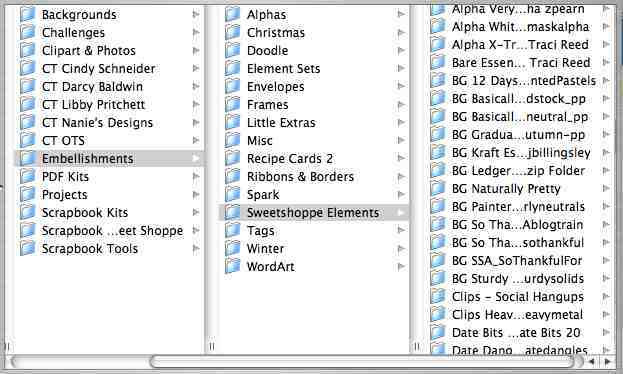
Hey there! First off, I need to apologize for doing such a bad job posting this last week. On top of trying to get my act together as a scrapbooker, I’ve also been confronted with some internet problems over the last few days, followed by a power outage, so there you know why things on my blog have gone a little slow, lately! Anyways, I’m back again, and today I’m going to allow you to take a look behind the scenes as far as storing your files is concerned. If you remember well, a couple of weeks ago I share with you how I organize files. Now, that was related to digital scrapbook products such as full kits. But there is a lot more available in the digiscrap markets than just full fledged kits. There are various kinds of element packs, paper packs, alphas, brushes, fonts and a whole lot more. So, today I’ll let you see how I organize these things. I like things simple. So, there are two kinds of folders that I …

Behind the Scenes: Typewriter Fonts

It’s about time that I’d take you to the world of fonts. For a long time, I’ve been intrigued by fonts, collecting them on my computer (and yes, I’m aware that people say they slow things down). Still, I can’t help myself – I do love fonts, and it’s great how you can put them to use in digital scrapbooking. So, today I want to talk about typewriter fonts. Tons of different typewriter fonts are out there – a lot of them for free. You can use clean types, but I especially love the ones that look old, worn, ragged. In general, typewriter fonts will give your page a kind of vintage look. They also work great when you combine them with handwriting fonts. On top of that they make great word strips, even work as titles. Here’s just a quick glance at some of my pages I did recently where I used typewriter fonts (simply click on the image to enlarge): Now that you’ve seen all this inspiration, of course you want to know, …

DIY: Christmas No. 4

Christmas is fast approaching, but it’s still time to get those Christmas cards out, so today I’ll bring you another how to on creating your own Christmas card. First, as always, we need to create the card (with all the mats, background papers and embellishments) in our graphic program. This card is a rather simple one, so it only has five printable parts to it: Two background mats, the base for the ribbon, the label and the snowflake. I also used a white ribbon and a piece of string. After creating and arranging the different mats and elements in photoshop, I open a new canvas where I drag and drop everything and arrange it for printing. (Always make sure on the printing canvas to have nothing overlap!) Once I’ve printed everything, cutting and assembling starts. I use white cardstock (size A5) for the base layer, fold it in half and begin to adhere the two background mats on there. The order doesn’t matter, because the ribbon will cover where the two will overlap. I measure …

101209-DIY-IMG_3409

DIY: Christmas Card No. 3

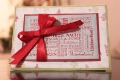
There’s still time to send out those little Christmas greetings, so let me show you another one of my Christmas cards and what I did to create it: The card comes with five parts – two background mats, two center-piece mats and a ribbon. Simple enough, right? I used four different kinds of papers – one patterned one, and the other three ones are plain solid colored. Now, what’s special about this card is that the top layered mat has a lot of writing on it – all words that have to do with Christmas. So, while it took me some time to brainstorm all the different terms, assembling them wasn’t all that hard. Simply pick a lot of different fun fonts and arrange them on the mat until there is no more space left. The trick is: re-size. You can make some words big and bold, others can be quite small. That way arranging everything is a relatively simple task. Once you’ve clipped all the papers and finished arranging the wordart, you can prepare …

Enable Me: Shadows

Everyone always wants to know about shadows as this is one area where we all want to improve all the time. There are lots of tutorials out that show you how to create great shadows, and one of my favorite tutorials ever is Megan Turnidge’s “Shadows in Photoshop CS4” tutorial on her blog. It comes with free downloadable styles that I installed in my PS and ever since then, my shadowing has improved a lot. Of course, her shadows only serve as a guideline for me now, and I always adjust them a little to fit my layout, but they serve as a great starting point, though they come in a rather unusual angle (-44°). However, I started using this angle and love it altogether! Check out Megan’s tutorial, and don’t forget to leave her some love!

Behind the Scenes: Organizing Files

There are always lots of people wondering about what’s a good way to store your digi-scrap files and how to stay on top of all the stuff you have, that is: how to stay organized. After all, digi-scrapping can get quite as messy as actual paper scrapping, if you don’t have a good system on how to store your goodies and keep your desktop clean. Now, I’m aware that there are almost as many ways of storing things, as there are different types of scrappers. But I thought, today I’d give you some insight into what I’m doing to keep things neat and easy to find. Here’s What I Do The first thing I do after downloading and unzipping a folder is to rename each individual file in the folder. I keep the original names, but in front I add information stating the type of the supply (background, mat, button, bow, ribbon, label, flower, stitch, stamp, brush, beads, scatters, paint strokes, weather elements, etc.) and the colors involved (I only use main colors such as: …

DIY: Paper Bags

It’s time for another Do-It-Yourself tutorial, and today I thought to tell you how to make those paper bags that I used to make my advent calendar with. They are very simply to make and quite versatile to use (gift bag, advent calendar, storage, decoration, etc.). 1. You might want to hop over to the PaperCraft Art Creative website and download their template (a simple pdf file). 2. Open the pdf file in your Photoshop program, select the template and drag it onto a new canvas. Re-size and duplicate the template layer and start clipping papers from your digi stash to it. I used one or two papers and sometimes a ribbon to clip to the paper bag. (You might want to re-size the papers as well to make sure the patterns are in proportion to your template.) Once you’ve arranged everything to your pleasing, merge all layers. 3. Print and cut everything, then simply follow the steps of the tutorial of the PaperCraft Art Creative website. Most of it is pretty self-explanatory. I made …

Inspire Me: Advent Calendar

I kept promising you my special treat, and today, finally, the day has come! My first, very own advent calendar. Even though I’m a little too old for something like an advent calendar myself, I’ve always loved having one, and this year, I decided getting one again, after years of going without one. Now, with all the fabulous scrapbook kits I’ve collected over the last year (and especially with my weakness for Christmas kits – I have tons of them and still have more on my wishlist!), I wanted to have a paper based advent calendar for which I could use my digiscrap stuff. Whatever it was going to be, I wanted to make sure it would be large enough to hold some snacks and candies (I got a lot of good European treats from friends that I wanted to use for this). Most important, however, I wanted to be able to store it easily for re-use next year, without it ending up taking a lot of storage space. So, I went on an online …