
Credits:
Dreaming of a Pink Christmas by Libby Pritchett & Melissa Bennett
Font: DJB Fancy Nancy

Credits:
Dreaming of a Pink Christmas by Libby Pritchett & Melissa Bennett
Font: DJB Fancy Nancy

Credits:
Christmas Countdown by Kristin Cronin-Barrow and Zoe Pearn
Font: DJB Fancy Nancy

They’re rare, and they’re special to anyone who, like me, particularly enjoys this season of the year: autumn moments. I had one the other day after the storm. For once the leaf-cleaners/tree shakers/gardeners of our campus had not gotten to the leaves yet, and so I went out to enjoy the crisp air and the fresh breeze that had done a good job of scattering some of the leaves across the lawns. Of course, some trees haven’t even started to color their leaves (for that I’ll have to wait another week or two), but I’m patient. I’ll wait, and I’ll be prepared for more of those rare autumn moments – once they come …
To start out my Tuesday tutorials after the long break, I thought I’d share with you one nifty little tool that I use all the time. It’s the Alignment Tool, which you’ll probably find somewhere at the top of your photoshop screen (if your workspace is in any way similar to mine). The Alignment Tool comes in handy when you need to arrange things, and you want to make sure they’re placed correctly in relation to other elements on your layout. When working with alphas, I use the Alignment Tool all the time. But also when I want to make sure an element is exactly in the center of a specified space. Instead of playing the guessing game (and wasting a lot of time trying to align things manually), I refer to the Alignment Tool.

I aligned the alpha
Option 1 | Aligning Elements in Relation to Each Other
When aligning elements, all you need to do is select the layers of all elements you want to be in line in the layers panel. As soon as you select two or more layers, the options for alignment will become active in the top bar of your photoshop screen. Choose your desired option (top, bottom, center, left, right), and you’ll see how your objects will be moving accordingly. Play around with it, to find out about the different options you have. Hopefully, in the future, it’ll save you a lot of time arranging things on your page.
Tip:
This trick comes in handy when you
- want to arrange an alpha on a straight line;
- are trying to arrange shapes you’ll need for clipping (layout composition)
Option 2 | Aligning Elements in Relationship to the Entire Canvas
When it comes to layout composition, often I want to make sure an element or paper block lines up exactly at the edge, or in the center of my page. In that case, I hit command+A to select the entire page (or use the Marquee Tool [marching ants] to select a specific area), select the layer(s) I want to align in the layers panel, and choose from the alignment options at the top of my photoshop window. In an instant all selected layers are moved in a straight line wherever I chose to align them according to the alignment options.
Tip:
This option works well for
- arranging papers/paper blocks (layout composition);
- aligning/centering elements within a specified area.

Credits:
Color Outside the Lines by Kristin Cronin-Barrow
Font: I Love Me Some Brook by Darcy Baldwin
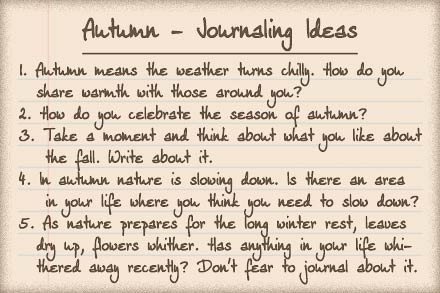
For many of us, fall is in full swing. It’s a great opportunity to think – and journal – about autumn – the fun aspects of it as well as those which cause us to struggle. Here’s the latest journal inspiration I have for you:
And of course, I’ll share my own thoughts about autumn as well:


I’ve been out and about again. This time we went to share a fun afternoon with kids, playing with them, and doing arts and crafts. They had so much fun drawing their hands and tracing leaves – something they had never done before – that it was a great pleasure to watch them and be with them.
You can waste your life drawing the lines, or you can live your life crossing them.
~ From Grey’s Anatomy ~
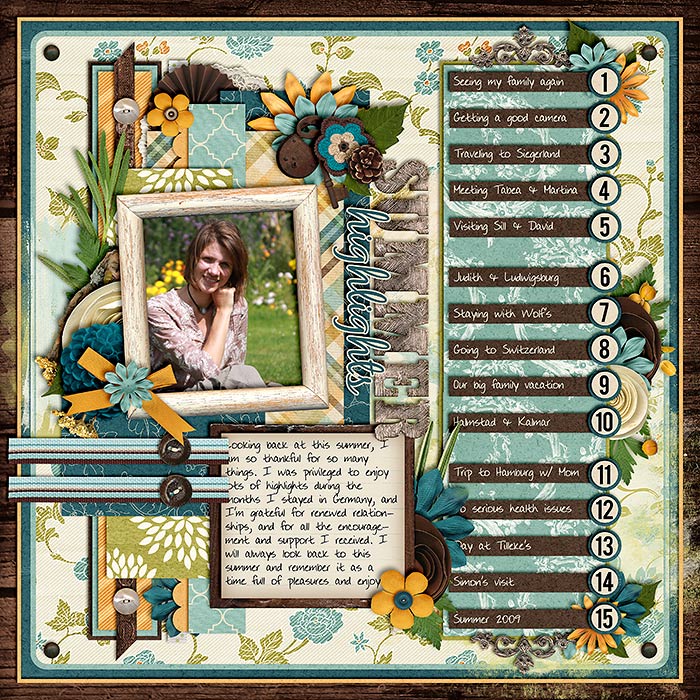
I just ordered another photo book the other day. Someone over at SSD had been kind enough to gift me with a coupon at shutterfly, and the deadline was Oct. 31, so of course I had to take the opportunity to use that coupon before the time was up. And now, I’m happy to share with you my memories from the summer of 2009:
Click here to view this photo book larger