
Day: December 13, 2011

He’s Here …

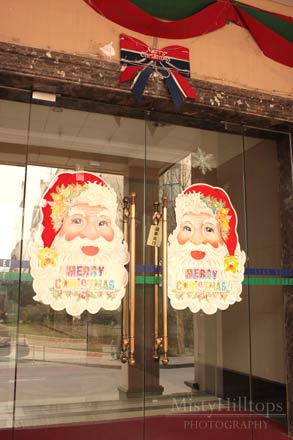
Here he is. Santa Clause. The other day I promised you some insight to some of the Christmas decoration around, and here’s our first glimpse of Santa Clause. Actually he doesn’t just greet you at the door. He’s definitely made it inside as well. As a matter of fact, once you enter the lobby, he’s all around you, hanging like banners from the ceiling. So, even if you wanted to, there’s no escaping him. No wonder he’s able to tell whether you’ve been naughty or nice recently. And for anyone wanting to live in our building, you’d better behave yourself, because Santa’s definitely watching …

Behind the Scenes: Re-Coloring Overlays and Brush Layers

As promised last week, I have a very quick and short tutorial today on how to re-color brush layers and overlays (ie. as used in my current December Daily project). (See the overlay with the date cluster that frames the journaling page.)   In this tutorial you will learn how to … … add a Color Overlay Style to your brush layer (or overlay).   Here’s How It Works …   STEP 1 | Add a Color Overlay to Your Layer Assuming that you already have your canvas open and created a brush layer (or any other kind of solid colored overlay), in the Layers Panel, double click on the layer that you wish to modify. That should bring up the Layer Style menu (or click on the little fx symbol at the bottom of your Layers Panel). On the left side of the pop-up window, you will see a list of Styles options. Check “Color Overlay” to open that menu. Click on the little color box (by default it’s red in my version of …